When I first started creating faceless content, one thing became very clear:
I did not want to spend hours designing every single social media post.
Between mom life, everything happening around the house, and trying to actually grow an account, I needed something simple.
That’s where Canva became incredibly useful for me.
You don’t need professional graphic design experience. You don’t need fancy software either. Most importantly, you don’t need a camera pointed at your face every day just because you’re building a social media brand.
I’ve built faceless quote pages on Instagram and Facebook, grown audiences, gotten monetized, and made money from them. A big part of running pages like these is learning how to create content efficiently.
If you’re starting from zero, learning to create faceless content with Canva can make that process feel much less overwhelming.
This isn’t going to be a giant Canva masterclass. Instead, think of it as your beginner roadmap for understanding what you can create and how to develop a simple system that works for your brand.
Let’s get into it.
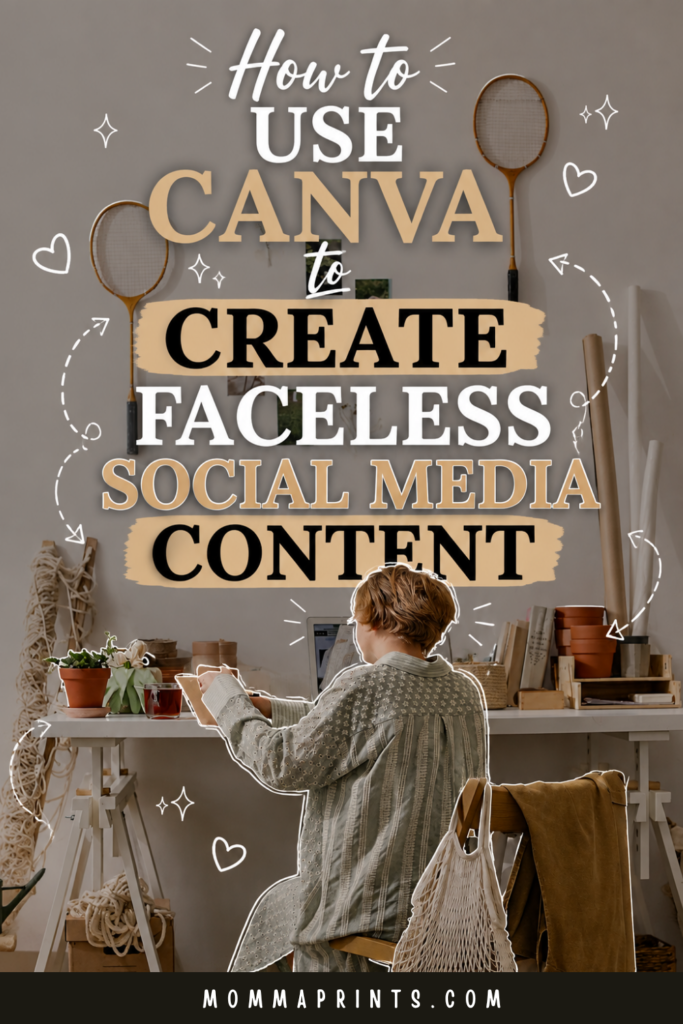
If you have Pinterest, would you mind saving this image for me? 😊
What Is Faceless Social Media Content?
Faceless content is simply content that doesn’t require you to make your face the focus.
That could mean:
- Quote graphics
- Educational posts
- Carousels
- Text-based Reels
- Infographics
- Checklists
- B-roll videos
- Screen recordings
- Pinterest Pins
- Product graphics
Your personality can still come through.
Your ideas can still be original.
The account can even feel deeply personal without requiring you to film yourself talking to the camera every morning.
That’s something I wish more beginners understood.
Faceless doesn’t mean personality-less.
Why Canva Works So Well for Faceless Accounts
Canva makes it possible to create many types of social media graphics from one place.
Instead of starting with an empty design every time, you can create reusable layouts for your brand.
Once those are ready, content creation becomes much faster.
For example, you might have one template for quotes, another for educational posts, and a few layouts for carousels.
Next week, you don’t need to redesign everything.
Duplicate.
Change the copy.
Adjust the visuals.
Done.
And as a busy mom, anything that saves me from reinventing the wheel every Tuesday is a win. 😂
Step 1: Decide What Your Brand Should Look Like
Before making 50 Canva templates, create a simple visual direction.
You don’t need a complicated brand guide.
Start with a few basics:
Colors: Pick a small palette that works well together.
Fonts: Choose two or three that are easy to read.
Style: Decide whether your content feels minimal, colorful, feminine, bold, playful, cozy, professional, or something else.
Images: Think about what types of photos or videos fit your message.
Your goal is consistency.
Someone scrolling through their feed should eventually recognize your content before they even notice your username.
That’s especially useful for a faceless brand because your visual identity helps replace some of the recognition that a personal creator gets from showing their face.
Step 2: Create a Few Reusable Canva Templates
Here’s where I’d tell every beginner to keep things simple.
You do not need 75 different designs.
Create a small collection of reusable templates instead.
You might start with:
Quote Template
Keep this clean and readable.
The quote or message should be the star.
Educational Post
Use this for quick tips, lists, mistakes, reminders, or mini tutorials.
Carousel Template
Create a cover slide, a few information layouts, and a final CTA slide.
Reel Cover
Design one or two styles that make your Reel topic obvious.
Once you have those basics, you can create a surprising amount of faceless content with Canva without constantly starting over.
Step 3: Create Simple Quote Graphics
Quote content looks easy.
And technically, it is.
But there’s a difference between a graphic containing words and a post people actually want to share.
Focus on the message first.
Ask yourself:
Would someone send this to a friend?
Does it make them feel understood?
Is it funny?
Relatable?
Encouraging?
Thought-provoking?
Then make the design support the message instead of overpowering it.
You don’t need seven fonts, six stickers, three photos, and a tiny butterfly hovering over every sentence.
Sometimes simple works better.
Step 4: Turn Helpful Ideas Into Carousels
Carousels are great when your idea needs more than one screen.
Let’s say your topic is:
5 Mistakes New Faceless Instagram Accounts Make
Your Canva carousel could look like:
Slide 1: Strong hook
Slides 2–6: One mistake per slide
Slide 7: Quick takeaway
Slide 8: CTA
That CTA might encourage readers to save the post, comment, follow your page, or visit your website.
Don’t squeeze an entire blog post onto eight slides.
Keep each slide easy to scan.
If people have to zoom in to read your Instagram carousel, we’ve gone too far. 😂
Step 5: Use Canva for Faceless Reels
You don’t have to dance, lip-sync, or point at floating text to create a Reel.
Faceless Reels can use:
B-roll footage
Hands-only clips
Screen recordings
Workspace videos
Lifestyle footage
Product clips
Text-based animation
You can bring your footage into Canva and add text, graphics, transitions, or other elements when they suit the content.
Start with a strong hook.
Then keep the message moving.
A beautiful video won’t help much if viewers have no idea why they’re watching it.
Want to Go Beyond Creating Pretty Content?
This is something I think is important to understand:
Creating nice graphics isn’t the same thing as building a business.
Your content needs a purpose.
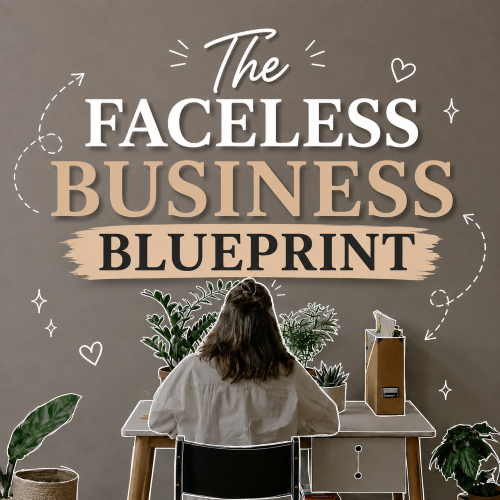
That’s exactly why I created The Faceless Business Blueprint: Build, Grow & Monetize a Social Media Brand Without Showing Your Face.
The free guides here on MommaPrints are designed to help you understand individual pieces of the puzzle.
Inside the Blueprint, I go deeper into the how behind building a faceless presence, creating content with intention, growing an audience, exploring monetization, and developing a business around your brand.
So if you’re ready to go beyond “What should I make in Canva?” and start thinking about the bigger picture, the Blueprint is there for that next step.
Step 6: Turn Blog Content Into Social Media Posts
If you’re also blogging, don’t let those ideas sit on your website doing nothing.
Repurpose them.
For example, imagine you write a blog post called:
How to Start a Faceless Instagram Account From Scratch
That article could become:
A carousel about five beginner steps.
A Reel about the biggest mistake to avoid.
A quote graphic.
A Pinterest Pin.
A short educational post.
A Story question.
Now one idea is working much harder for you.
This is one of my favorite ways to avoid constantly wondering what to create next.
Step 7: Design Pinterest Pins in Canva
If your business has a blog, digital products, or other website content, Pinterest can give your Canva skills another job.
Create vertical Pins that clearly communicate what someone will find after clicking.
Let’s say your article is about digital products.
Instead of putting:
DIGITAL PRODUCTS
on your Pin, try something more specific:
15 Digital Products You Can Sell Online as a Beginner
Now the reader knows exactly what they’re getting.
Use large, readable text and strong visual hierarchy.
Your Pin should make sense quickly, especially on a phone screen.
Step 8: Build a B-Roll Library
You don’t need to create every part of your content inside Canva.
Film simple original footage throughout your normal routine.
Maybe it’s:
Typing on your laptop.
Using your phone.
Writing in a notebook.
Working at your desk.
Making coffee.
Opening Canva.
Planning content.
Organizing your workspace.
Save those clips in one folder.
Later, you can reuse appropriate footage with different messages.
Having your own B-roll library makes creating faceless content with Canva much easier because you’re not scrambling for visuals every time you need a Reel.
Step 9: Batch Your Canva Content
Once your templates are ready, try creating content in batches.
Instead of designing Monday’s post on Monday, create several posts during one focused session.
Start with your ideas.
Write your hooks and copy.
Then move into Canva.
Because you’re doing similar tasks together, you aren’t constantly switching between writing, brainstorming, designing, and planning.
For example:
PLAN → WRITE → DESIGN → ORGANIZE → SCHEDULE
Even if you only prepare one week of content, that’s progress.
Your first batch doesn’t need to be an entire month.
Step 10: Create Content People Actually Want
Canva can make content look good.
It can’t make a weak idea interesting.
This part matters.
Before spending 45 minutes adjusting a design, ask yourself:
Is this actually useful or relatable?
Look at what your audience saves, shares, comments on, and clicks.
Pay attention to questions they ask.
Watch which topics repeatedly perform well.
Then create more content around those subjects.
Your goal isn’t to become the best Canva designer on Instagram.
It’s to communicate good ideas effectively.
Don’t Make Every Post Look Exactly the Same
Consistency is helpful.
Sameness gets boring.
Your brand can use the same colors, fonts, and overall style while still changing layouts.
Think about a magazine.
The pages don’t all look identical, yet the entire publication still feels connected.
That’s what you’re aiming for.
A recognizable faceless brand, not a feed full of clones.
Keep Your Content Human
One thing I’d be careful about is making your account feel overly polished and generic.
Faceless content still needs a person behind the ideas.
Add your experiences.
Use humor when it feels natural.
Write captions in your own voice.
Share lessons you’ve learned.
Tell stories when they’re relevant.
This is especially important if you’re selling something.
People don’t need to see your face to trust you, but they do need to feel that there’s thought and care behind the brand.
Don’t Wait Until Your Designs Are Perfect
I promise your first Canva graphic does not need to win a design award.
Your style will change.
You’ll get faster.
Your templates will improve.
Eventually, you’ll look at an old post and wonder why you chose that font. 😂
That’s normal.
The only way to develop your style is to create.
Publish.
Learn.
Adjust.
Then create again.
Final Thoughts
Learning to create faceless content with Canva can remove so much pressure from social media.
You don’t have to wake up camera-ready.
A professional designer isn’t required either.
You certainly don’t need a brand-new design for every post.
Start with a simple visual identity.
Create reusable templates.
Experiment with quote posts, carousels, Reels, and Pinterest Pins.
Build your own B-roll library.
Repurpose good ideas.
Batch what you can.
Most importantly, focus on the message before obsessing over the design.
Canva is the tool.
Your ideas are what make the content worth following.
Ready to Build Your Faceless Business?
If you’re learning Canva because you want to build something bigger than a social media feed, take a look at:
The Faceless Business Blueprint
Build, Grow & Monetize a Social Media Brand Without Showing Your Face
I created it for beginners who want the deeper how behind building a faceless brand, creating purposeful content, growing an audience, exploring monetization, and developing an online business without making themselves the center of their content.
My experiences are my own, and results aren’t guaranteed. Social media reach, growth, traffic, sales, income, and monetization can vary based on your content, audience, marketing, products, platform policies, and other factors.
Keep Reading on MommaPrints
Want more help with your faceless content? These guides are a great next step:
- How to Batch a Month of Social Media Content in One Day
- 25 Faceless Content Ideas for Instagram, TikTok & Social Media
- 50 Faceless Instagram Reel Ideas to Get More Views
- How to Create a Faceless Brand That People Actually Trust
Get Free Templates, Tips & Training 💌
Subscribe to MommaPrints for free templates, helpful tips, and beginner-friendly training, plus exclusive freebies, early product drops, and special discounts on MommaPrints digital products.
Follow MommaPrints on Pinterest 📌
Follow MommaPrints on Pinterest for Canva content ideas, faceless Instagram tips, social media templates, Pinterest inspiration, digital product ideas, and beginner-friendly faceless business strategies.